
This article provides a quick overview of how to use the Klangio Transcription Plugin to convert audio into unquantized MIDI, supporting multiple instruments.
What is the Klangio Transcription Plugin? #
The Klangio Transcription Plugin uses state-of-the-art AI to:
- Convert audio into unquantized MIDI
- Identify and separate multiple instruments into individual MIDI tracks
- Provide a streamlined workflow that blurs the boundaries between audio and MIDI
It’s ideal for musicians, producers, and creators looking for a fast and accurate way to turn recordings into editable MIDI.
Requirements #
- An active internet connection – transcription happens in the cloud
- Acceptance of Klangio’s Terms & Conditions
Download & Installation #
Download #
You can download the plugin installer from:
- klang.io/transcription-plugin
- Or via your Klangio Account Settings
The installer includes both:
- A VST3 plugin
- A standalone version
Compatible with all major DAWs.
Installation #
- Run the installer for your operating system (Windows or macOS).
- The VST3 will be placed in your system’s default VST directory (automatically detected by your DAW).
- The standalone version can be opened like any other application on your computer.
Basic Operation #
Opening the Plugin #
In your DAW:
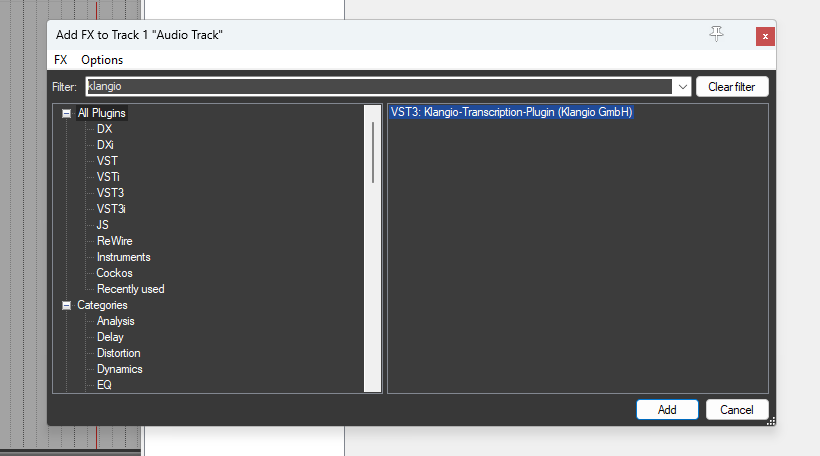
Load the plugin into a track like any standard VST3 instrument. It should appear in your plugin list automatically. It may also appear in the MIDI FX section.
Standalone Version:
Launch the app directly on your computer.
Recording or Importing Audio #
To begin transcription, you can either:
- Record audio directly within the plugin
- Drag and drop an audio or video file into the plugin
Note: Files must be between 5 seconds and 15 minutes in length.
Recording Audio #
In Your DAW (VST Version) #
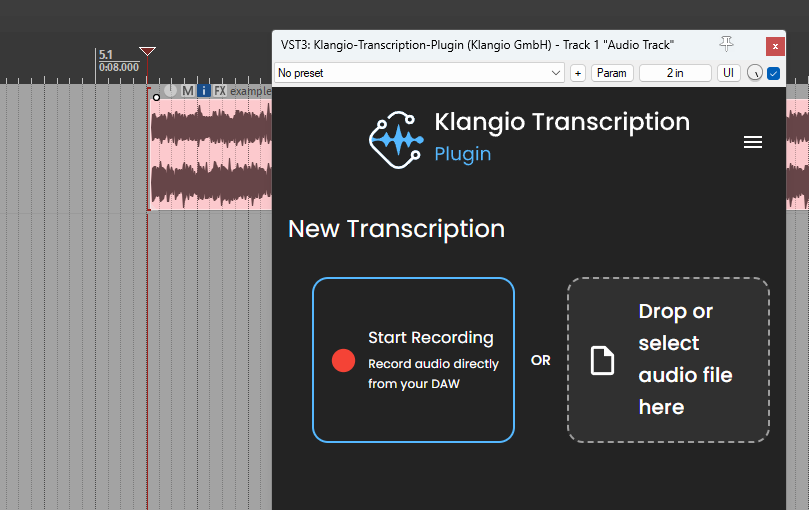
The plugin captures the audio output of the track it’s loaded into.
Tip: To transcribe your entire DAW output (i.e., everything you hear), insert the plugin into your Master Track.
Steps to record:
- Load the plugin into the desired track (must contain the audio to transcribe).
- Place the DAW cursor at the start of the audio item.
- Press Record in the plugin.
- Hit Play in your DAW.
- After recording ends, click Stop.
- Preview your recording. If satisfied, click Transcribe.
In Standalone Mode #
The standalone version records microphone or line-in input.
💡 Workaround: To capture computer output, place your mic near your speakers.
Steps:
- Connect your instrument or position your mic near the sound source.
- Open Audio Settings (top-left or top-right menu) and select the correct input.
- Click Record – recording starts immediately.
- Click Stop when finished.
Drag & Drop Audio #
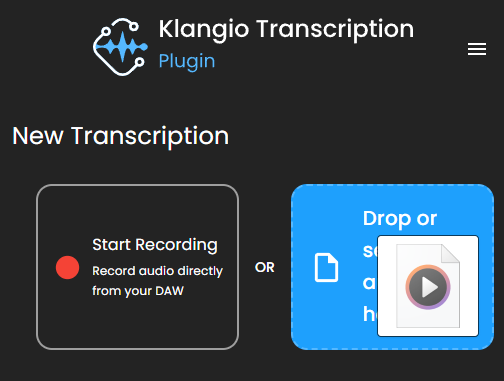
Instead of recording, you can:
- Drag & drop audio or video files directly into the drop zone (next to the Record button)
- Or click the drop zone to manually browse your files
Supported file types include:
.wav,.mp3,.aac,.flac.mp4,.movand more
Transcription #
The plugin currently offers a rock mode, a universal mode, and a single instrument mode.
The plugin can currently detect and transcribe the following instruments:
- Vocals
- Guitar (clean)
- Piano
- Bass
- Drums
- Strings
- Winds (brass & woodwinds)
- Synthesizers
If none are detected, you’ll receive:
“No instruments detected.”
Try a different audio file in that case.
💬 We welcome your feedback! Click the Support button to suggest new instrument types.
MIDI Preview #
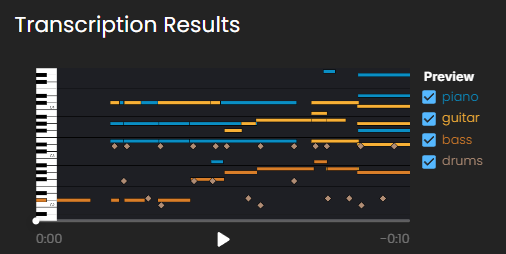
After transcription, you’ll see a pianoroll preview of the MIDI output, with playback options.
Features:
- Play/Pause at the bottom center
- Scrub the timeline
- Toggle visibility/playback of instruments on the right
⚠️ The preview uses basic instrument samples – the final result will sound much better when loaded into your DAW with virtual instruments.
Exporting MIDI #
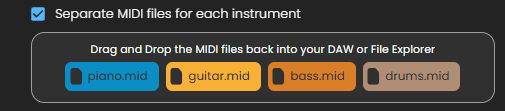
Once you’re satisfied:
- Drag & drop the MIDI files from the plugin into your DAW.
- Choose between:
- Single instrument MIDI – one track per instrument
- Multitrack MIDI file – all instruments in one file (DAWs will prompt to separate tracks)
Good to know:
- MIDI is unquantized, preserving timing from the original audio
- Use your DAW’s quantize function if needed
- Note velocity is not detected – you can adjust it manually in your DAW
Klangio Studio Pro & Account Settings #
Change the Language #
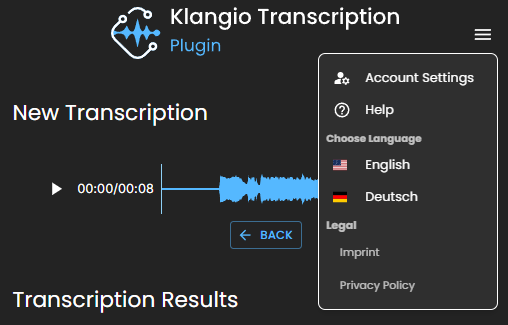
Click on the burger menu in the top right corner to change the language of the plugin.
Subscription Required #
To fully use the plugin, you’ll need a Klangio Studio Pro subscription.
Steps to upgrade:
- Click Upgrade in the plugin
- Log in or create a Klangio account
- Complete the subscription process
Adding Your Device #
After subscribing:
- You’ll be redirected to plugin.klang.io
- Add your device ID with a few clicks
- You can also remove old devices from your account
Up to 3 devices can be connected per subscription
Account Management #
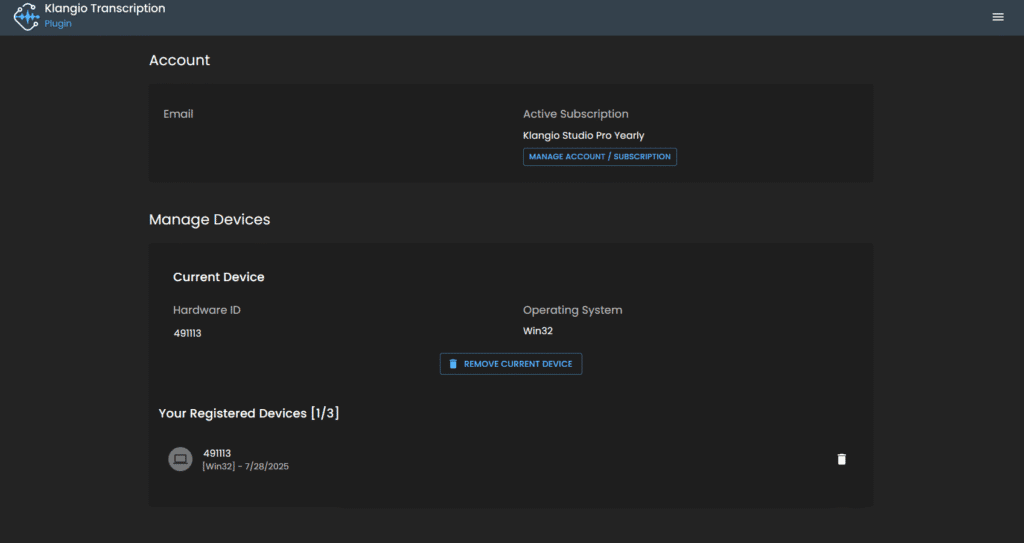
Visit plugin.klang.io, or click on “Account Settings” at the top right corner to:
- Change account details
- Cancel your subscription
- Add and Remove Device IDs
- Delete your account
⚠️ Cancel your subscription before deleting your account to avoid billing issues.
Known Issues #
Recording too slow (Windows) #
If audio recording is delayed:
- Restart your computer
- Still having trouble? Contact us via the Support button in the plugin
Distorted Electric Guitar #
Currently, only clean guitar tones are supported. Transcriptions of distorted guitars (e.g., metal/rock) may be inaccurate.
MIDI Drum Preview Sounds Off #
The drum playback in the preview may sound incorrect.
To evaluate transcription quality:
- Export the MIDI
- Load a virtual drum instrument in your DAW
Related Tools #
Try Klangio’s web apps for additional features:
- Convert audio into sheet music or guitar tabs
- Use Klangio Transcription Studio for a browser-based preview of transcription quality
→ Try it free at klang.io
Frequently Asked Questions #
This can happen, when you have installed an older version of the plugin on your computer. To fix this, navigate to where the plugin (.vst3, .au) is installed and delete them. Then, head over to klang.io/transcription-plugin, download the new installer and install the plugins again. If this doesn’t fix the issue, please reach out to us by clicking the “Support” button at the right.


