
If you’re not happy with the resulting notes of your Klangio transcription, then retranscribing could come in handy! In this article, you will learn how to retranscribe your songs with Klangio.
Continue reading or watch the YouTube tutorial:
You can find the retranscribe option in your songbook and in your transcription viewer (not available for Scan2Notes and Melody Scanner).
Option 1: Retranscribing in your Songbook #
Step 1: Open your Songbook #
After logging into your Klangio Account in the desired app, you will automatically land in your songbook. Note that currently, retranscribing is only available in the Klangio web apps. If you’re using the mobile apps, you can simply log into the web version with the same account and follow along.
Step 2: Start a Re-Transcription #
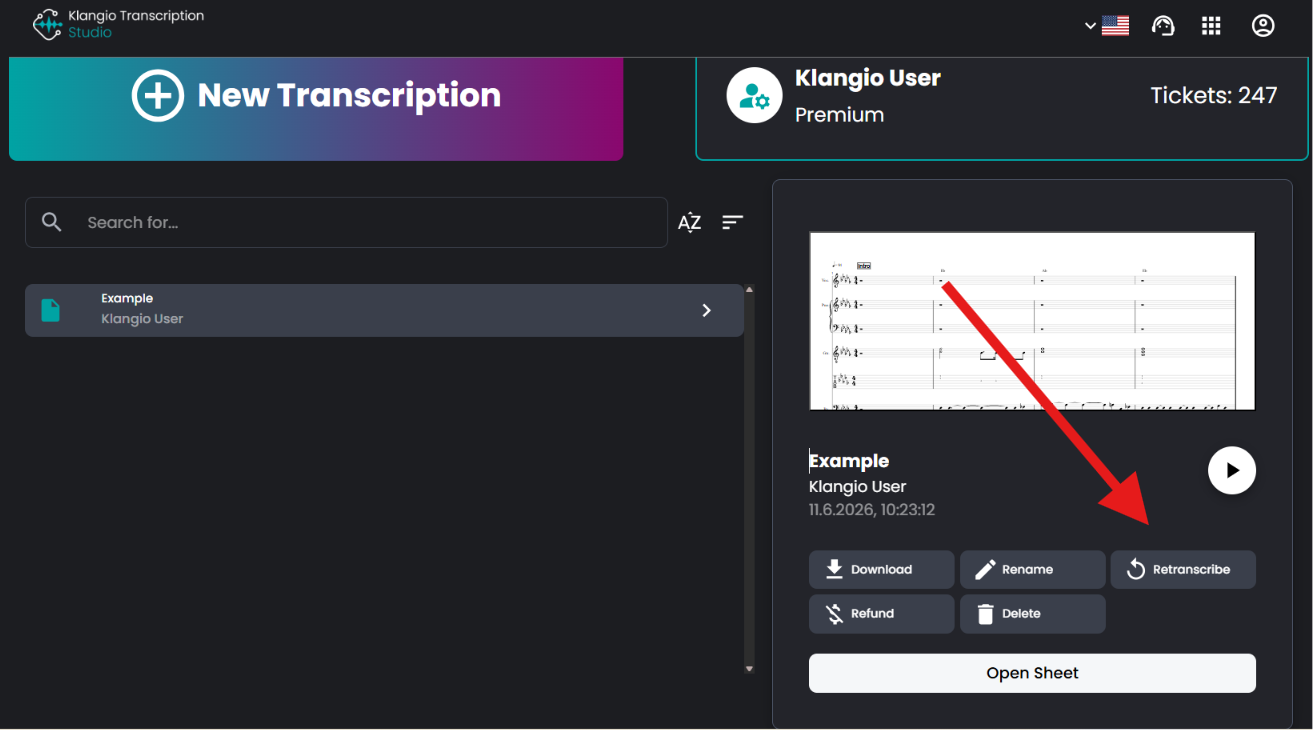
Now select the song in your songbook you want to retranscribe. A menu with different actions can be seen on the right side of your screen. There you can find the retranscribe button.
Step 3: Change the Additional Information #
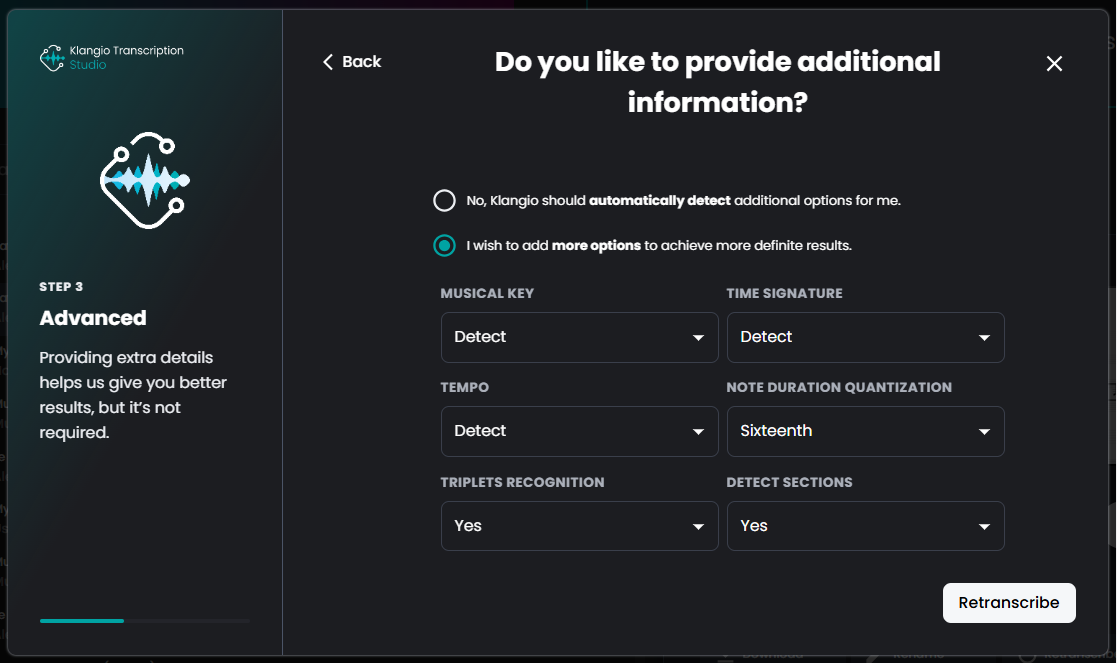
After clicking on the “Retranscribe” button, the Transcription Wizard will pop up, which allows you to select the mode and instruments and to edit the additional information for the transcription.
Option 2: Retranscribing in your transcription viewer #
You can also retranscribe a song while having it open in your transcription viewer.

Simply click on the “transcription settings” button in the top left corner of your screen.
Note that retranscribing a full transcription is completely free and does not use another ticket. If you want to change the transcriptions settings of a Demo Transcription, simply start a new demo transcription.
Feel free to check out the other articles in our Help Center, if you have questions about how to retranscribe your songs with the Klangio Apps.


